Check a restored backup ZIP: damage that file counts miss
Test eight synthetic files with relative paths and SHA256 hashes. Reproduce missing and changed files, read the CSV results and understand what this restore test cannot prove.
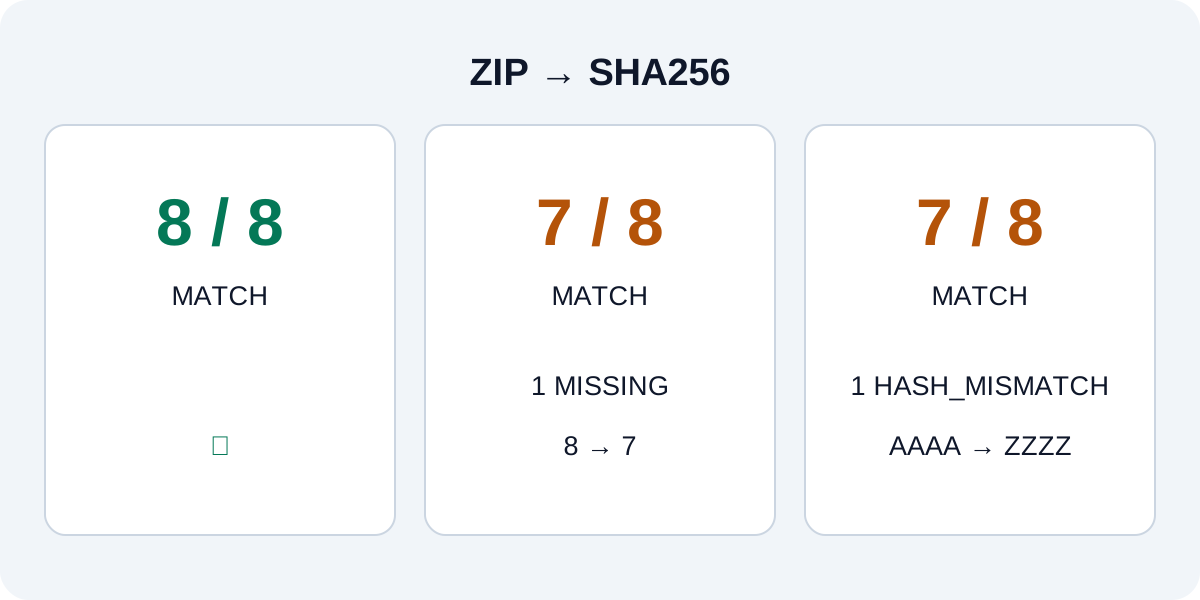
A ZIP exists and extraction has finished. Does that mean its contents match the originals? Compare each restored file's relative path, byte size and SHA256 against the original record. SHA256 is a long fingerprint calculated from file contents. Even if the name and size stay unchanged, comparing fingerprints can reveal changed contents.
This guide is not about choosing backup software. Its task is a small restore test that does not overwrite originals, followed by distinguishing missing files from changed contents. MillionsCode's editorial team created eight synthetic files and actually compressed and restored them. We then deliberately introduced two faults to check whether the comparison detected them. No customer records or personal backups were used.
Eight measured files and the test method
The test ran on Windows on September 28, 2026, using PowerShell 7.6.0-rc.1 and Microsoft.PowerShell.Archive 1.2.5. It was not a compatibility comparison across multiple stable releases. The dataset included a zero-byte file, a Korean filename containing a space, two different four-byte files, identically named files in different subfolders, a 256-byte binary file and a readme. Total: 8 files, 372 bytes.
First we recorded the source files. A relative path such as nested/level2/sample.txt identifies the location from the test folder. We stored each file's size and SHA256, compressed the folder to ZIP and extracted it into a new folder. We compared size and fingerprint for corresponding relative paths. Checking only filenames could confuse the two sample.txt files in different folders.
| Test condition | Source files | Compared files | Matches | Difference detected |
|---|---|---|---|---|
| Normal ZIP extraction into a new folder | 8 | 8 | 8 | None |
| One file deliberately omitted when copying the restored files again | 8 | 7 | 7 | Missing 15-byte file in a nested folder |
| AAAA changed to ZZZZ in a separate copy of the restored files | 8 | 8 | 7 | SHA256 mismatch in a four-byte file |
The first test is the normal path. The other two are controls checking whether injected faults produce failure results. They do not show the ZIP tool losing or corrupting files. The editorial team introduced the omission during copying and the content change in a separate copy after extraction.
The third case is particularly useful. Both sides still contained eight files, and the changed file remained four bytes. A count or folder-size check could pass, but comparing fingerprints identified the one changed file. Counts and sizes are quick checks; content equality is a separate check.
How to read the result CSVs
The accompanying restore-summary.csv summarizes the three tests. restore-comparison.csv contains 24 file-level rows. Case identifies the test, and RelativePath identifies the location within the folder. ExpectedBytes and ActualBytes are the source and comparison sizes; the two SHA256 columns contain their fingerprints. Technical column names and Korean filenames are retained as recorded.
- MATCH: Both size and content fingerprint match at this relative path.
- MISSING: A path in the source list is absent from the comparison copy. A blank actual-size field means no file, not a zero-byte file.
- HASH_MISMATCH: Sizes match but fingerprints differ. Restore this file again to investigate.
- The script also labels different sizes SIZE_MISMATCH and files absent from the source list UNEXPECTED. Those two branches were not separately fault-injected in these three tests.
For example, the same-a.txt row in same_size_change has 4 bytes on both sides. The original fingerprint starts 63C1DD95…, while the changed one starts 96741164…. The comparison used all 64 characters, not just those prefixes. By contrast, empty.txt was intentionally zero bytes, and its normal restore produced the same hash. Rejecting every zero-byte file as damaged would wrongly reject an intentionally empty file.
Reproduce safely before trying your own data
Read the reproduction script first, then save it as restore-lab.ps1 in a practice folder. Check that its extension is not still .ps1.txt. The reproduction script does not accept a path to your files. Each run creates a new test folder beneath the script's location and compresses, restores and changes only its own generated files. It contains no command to delete source files and no option to force overwriting an existing restore. Put it in an empty practice folder, read it, then run it in PowerShell. If workplace policy blocks scripts, do not disable the policy yourself; use the manual flow below to understand the results instead.
# Run from the practice folder containing restore-lab.ps1
& '.\restore-lab.ps1'
The zip_restore result should be PASS, and the two deliberate-fault cases should be FAIL. If ControlBehavedAsExpected is True in all three rows, the checker behaved as expected for these specific normal and faulty conditions. Do not confuse the deliberate FAIL controls with failure of a normal backup. After the experiment, open the CSVs and results.json in the newly created folder shown on screen to check execution time, versions and complete hashes.
For your own backup, use the source inventory from when the archive was created. Comparing against current files edited afterward can mark a sound historical backup as different. Practise first with copies of important files and restore into a new folder containing no existing material. Do not choose the original location as the extraction destination.
The core commands are below. Paths are illustrative; change them only within your practice folder. The first archives the practice source, the second restores the ZIP to a new location, and the final two display hashes of corresponding files. The extra source directory in the restored tree appears because the folder itself was archived.
Compress-Archive -LiteralPath '.\source' -DestinationPath '.\trial.zip'
Expand-Archive -LiteralPath '.\trial.zip' -DestinationPath '.\restore-new'
Get-FileHash -LiteralPath '.\source\notes.txt' -Algorithm SHA256
Get-FileHash -LiteralPath '.\restore-new\source\notes.txt' -Algorithm SHA256
Microsoft's Get-FileHash documentation explains content fingerprint comparison and the SHA256 default. Expand-Archive documentation distinguishes the destination from overwrite options. This example does not use -Force to overwrite existing files.
What a pass has not checked
Q. Does passing mean the whole backup is safe?
This PASS means that the eight synthetic files matched in location, size and contents after restoration. It did not measure SSD speed, disk lifespan, cloud synchronization success or large-backup reliability. We used one environment and did not test permissions, owners, encryption keys, application settings or open databases. Separately check that spreadsheets and photos open in their applications and that business software's dependent files also return.
Q. Does this cover hidden and very large files?
Microsoft's Compress-Archive documentation describes skipped hidden files/folders and a file-size limit. Do not extend this small ZIP example into a method for preserving a whole operating system or hidden settings. The test source contained no hidden files or files of 2GB or more.
Q. Is matching the original fingerprint the final check?
If the reference inventory itself is wrong or altered along with the files, matching hashes do not prove that you have the true originals. Check a separately retained inventory and its creation time. If files are missing or different, restore the affected paths again before deleting originals. After checking the inventory and hashes, open the documents you actually need. That gives you a much clearer next recovery step than merely knowing that a ZIP exists.
Related
Separate link bandwidth from sustained file transfers, calculate 100 GB copy tim...
Choosing productsChoose a programming keyboard: layout, noise and connection testsUse repeatable shortcut, typing, noise, wake and keymap tests, plus a weighted e...